Exploring the security risks in your code
You can use the different views on your Security tab to explore the security risks in your code.
- Overview: use to explore trends in Detection, Remediation, and Prevention of security alerts.
- Risk: use to explore the current state of repositories, across all alert types.
- Alerts views: use to explore code scanning, Dependabot, or secret scanning alerts in greater detail.
These views provide you with the data and filters to:
- Assess the landscape of security risk of code stored in all your repositories.
- Identify the highest impact vulnerabilities to address.
- Monitor your progress in remediating potential vulnerabilities.
For information about the Overview, see Viewing security insights.
Viewing organization-level security risks in code
-
On GitHub, navigate to the main page of the organization.
-
Under your organization name, click Security.

-
To display the "Security risk" view, in the sidebar, click Risk.
-
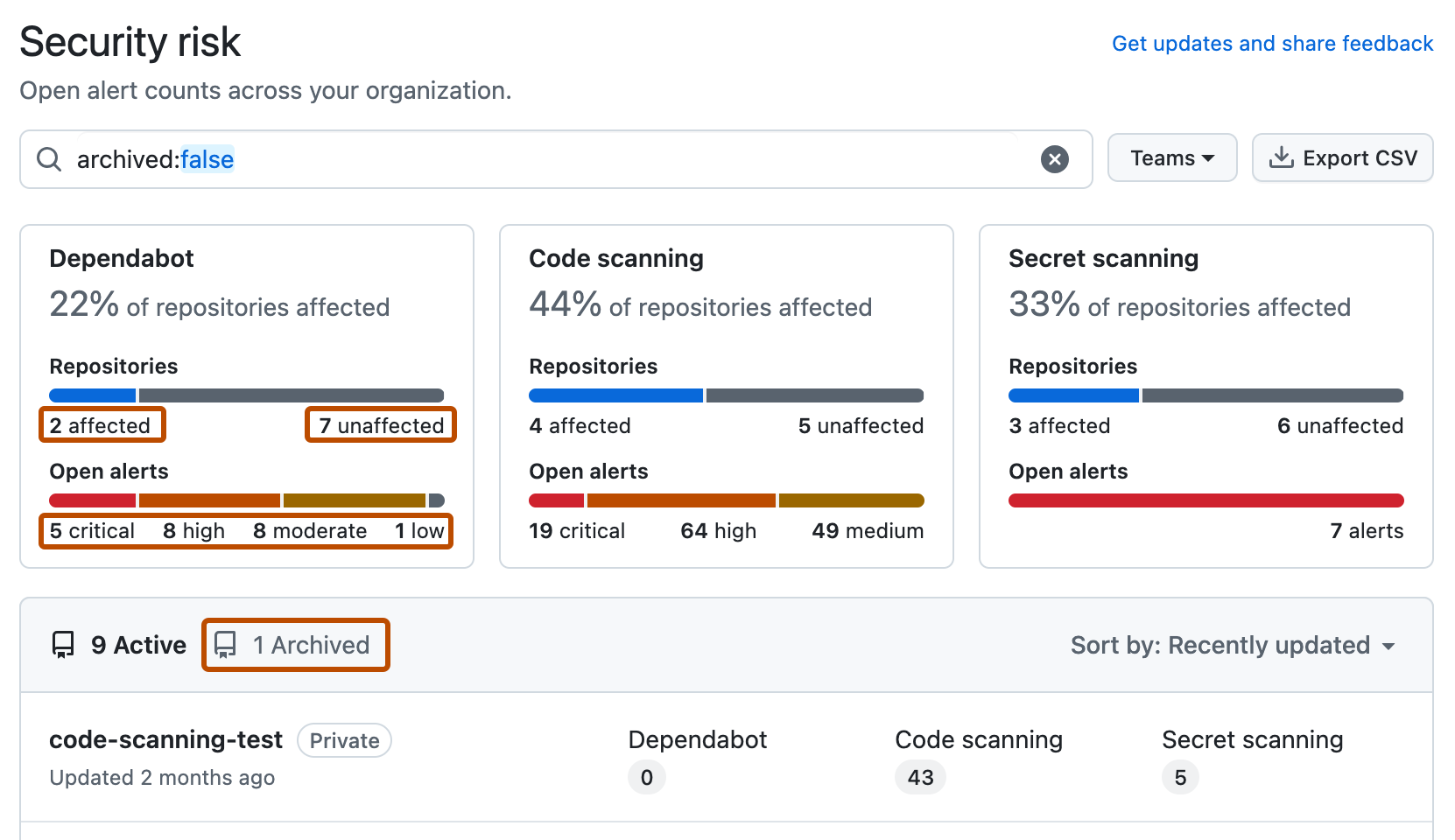
Use options in the page summary to filter results to show the repositories you want to assess. The list of repositories and metrics displayed on the page automatically update to match your current selection. For more information on filtering, see Filtering alerts in security overview.
- Use the Teams dropdown to show information only for the repositories owned by one or more teams.
- Click NUMBER affected or NUMBER unaffected in the header for any feature to show only the repositories with open alerts or no open alerts of that type.
- Click any of the descriptions of "Open alerts" in the header to show only repositories with alerts of that type and category. For example, 1 critical to show the repository with a critical alert for Dependabot.
- At the top of the list of repositories, click NUMBER Archived to show only repositories that are archived.
- Click in the search box to add further filters to the repositories displayed.
注意
The set of unaffected repositories includes all repositories without open alerts and also any repositories where the security feature is not enabled.
-
Optionally, use the sidebar on the left to explore alerts for a specific security feature in greater detail. On each page, you can use filters that are specific to that feature to refine your search. For more information about the available qualifiers, see Filtering alerts in security overview.


注意
The summary views ("Overview", "Coverage" and "Risk") show data only for high confidence alerts. Secret scanning alerts for ignored directories and non-provider alerts are all omitted from these views. Consequently, the individual alert views may include a larger number of open and closed alerts.
Viewing enterprise-level security risks in code
You can view data for security alerts across organizations in an enterprise.
提示
You can use the owner filter in the search field to filter the data by organization. For more information, see Filtering alerts in security overview.
-
In the top-right corner of GitHub Enterprise Server, click your profile picture, then click Enterprise settings.
-
On the left side of the page, in the enterprise account sidebar, click Code Security.
-
To display the "Security risk" view, in the sidebar, click Risk.
-
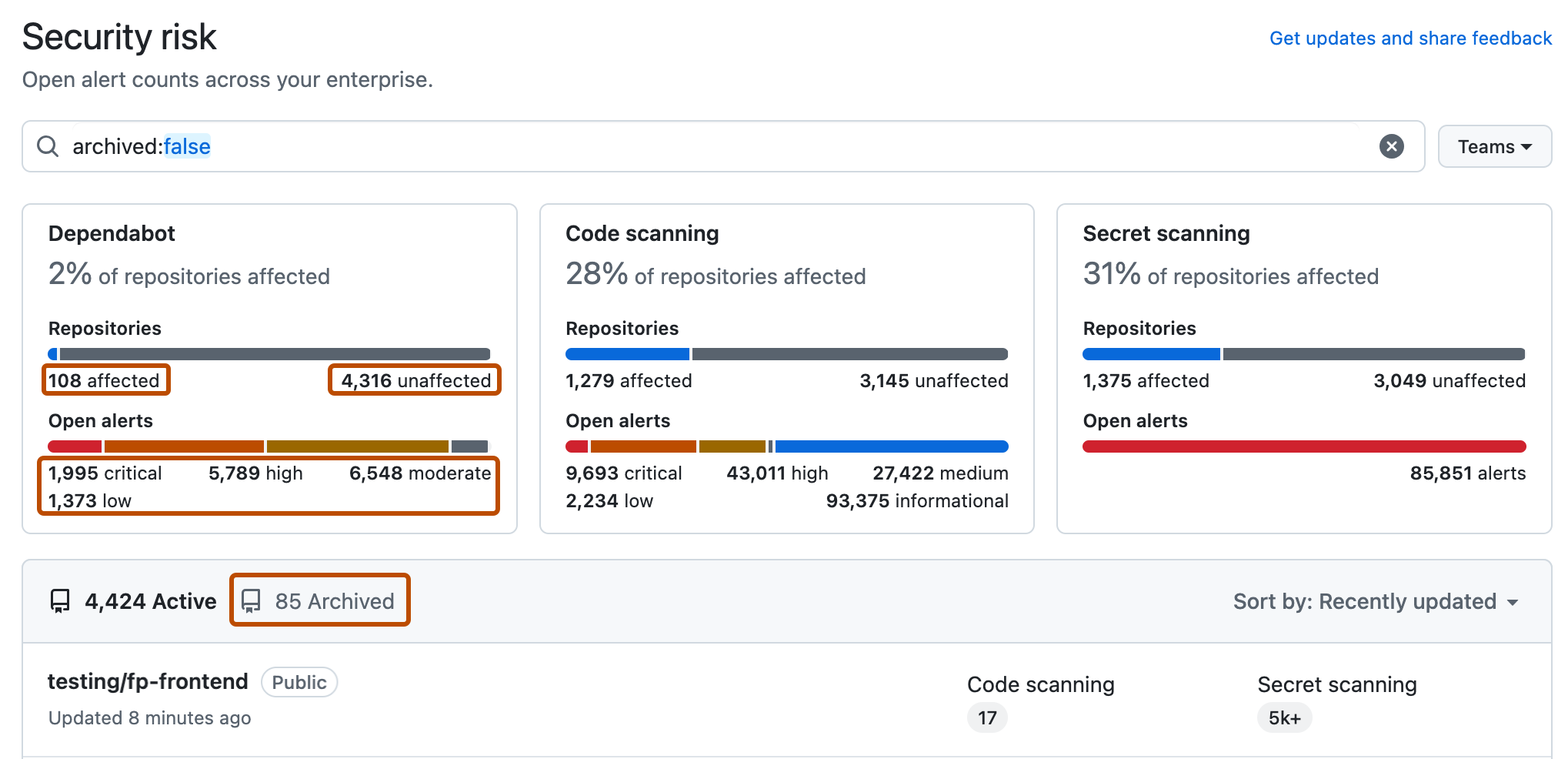
Use options in the page summary to filter results to show the repositories you want to assess. The list of repositories and metrics displayed on the page automatically update to match your current selection. For more information on filtering, see Filtering alerts in security overview.
- Use the Teams dropdown to show information only for the repositories owned by one or more teams.
- Click NUMBER affected or NUMBER unaffected in the header for any feature to show only the repositories with open alerts or no open alerts of that type.
- Click any of the descriptions of "Open alerts" in the header to show only repositories with alerts of that type and category. For example, 1 critical to show the repository with a critical alert for Dependabot.
- At the top of the list of repositories, click NUMBER Archived to show only repositories that are archived.
- Click in the search box to add further filters to the repositories displayed.
注意
The set of unaffected repositories includes all repositories without open alerts and also any repositories where the security feature is not enabled.
-
Optionally, use the sidebar on the left to explore alerts for a specific security feature in greater detail. On each page, you can use filters that are specific to that feature to refine your search. For more information about the available qualifiers, see Filtering alerts in security overview.

注意
The summary views ("Overview", "Coverage" and "Risk") show data only for high confidence alerts. Secret scanning alerts for ignored directories and non-provider alerts are all omitted from these views. Consequently, the individual alert views may include a larger number of open and closed alerts.