About team management with Enterprise Managed Users
With Enterprise Managed Users, you can manage team and organization membership within your enterprise through your IdP by connecting teams on GitHub with groups on your IdP.
The following sections explain how GitHub uses SCIM provisioning and reconciliation jobs to keep team and organization membership in sync with your IdP.
When GitHub receives a Group SCIM API call from your IdP, it generates an external_group.scim_api_success or external_group.scim_api_failure event in the enterprise audit log. These events capture detailed information about the call, including the payload and operation performed, and are recorded in the audit log with the actor set to the setup user, the account used to configure SCIM provisioning.
Once GitHub stores the group data at the enterprise level, it runs a daily reconciliation job to synchronize team membership with the stored IdP group data. This reconciliation also runs whenever a Group SCIM API call updates group membership, and if an admin links or unlinks a team to a stored group.
When a change to an IdP group or a new team connection results in a user joining a team in an organization they were not already a member of, GitHub automatically adds the user to the organization. When you disconnect a group from a team, GitHub removes users who became members of the organization via team membership if they do not have membership in the organization by any other means.
Teams connected to IdP groups cannot be parents of other teams nor a child of another team. If the team you want to connect to an IdP group is a parent or child team, we recommend creating a new team or removing the nested relationships that make your team a parent team.
To manage repository access for any team in your enterprise, including teams connected to an IdP group, you must make changes on GitHub. For more information, see Managing team access to an organization repository.
Requirements for connecting IdP groups with teams
Before you can connect an IdP group with a team on GitHub, you must assign the group to the GitHub Enterprise Managed User application in your IdP. For more information, see Configuring SCIM provisioning for Enterprise Managed Users.
You can connect a team in your enterprise to one IdP group. You can assign the same IdP group to multiple teams in your enterprise.
If you are connecting an existing team to an IdP group, you must first remove any members that were added manually. After you connect a team in your enterprise to an IdP group, your IdP administrator must make team membership changes through the identity provider. You cannot manage team membership directly on GitHub.
If you use Microsoft Entra ID (previously known as Azure AD) as your IdP, you can only connect a team to a security group. Nested group memberships and Microsoft 365 groups are not supported.
Syncing an enterprise team
Enterprise owners can create teams at the enterprise level.
Most of the instructions in this article apply to organization-level teams. For instructions on creating an enterprise team and syncing it with an IdP group, see Creating enterprise teams.
Creating a new organization team connected to an IdP group
Any member of an organization can create a new team and connect the team to an IdP group.
-
In the upper-right corner of GitHub, click your profile picture, then click Organizations.
-
Click the name of your organization.
-
Under your organization name, click Teams.

-
At the top of the page, click New team.
-
Under "Create new team", type the name for your new team.
-
Optionally, in the "Description" field, type a description of the team.
-
To connect a team, under "Identity Provider Groups", select the Select Groups dropdown menu and click the team you want to connect.
-
Under "Team visibility", select a visibility for the team.
-
Click Create team.

Managing the connection between an existing organization team and an IdP group
Organization owners can manage the existing connection between an IdP group and a team. If your enterprise does not use managed user accounts, team maintainers can also manage the connection.
Примечание.
Before you connect an existing team on GitHub to an IdP group for the first time, all members of the team on GitHub must first be removed. For more information, see Removing organization members from a team.
-
In the top right corner of GitHub, click your profile picture, then click Your profile.

-
In the upper-right corner of GitHub, click your profile picture, then click Organizations.
-
Under your organization name, click Teams.
-
Click the name of the team.
-
At the top of the team page, click Settings.

-
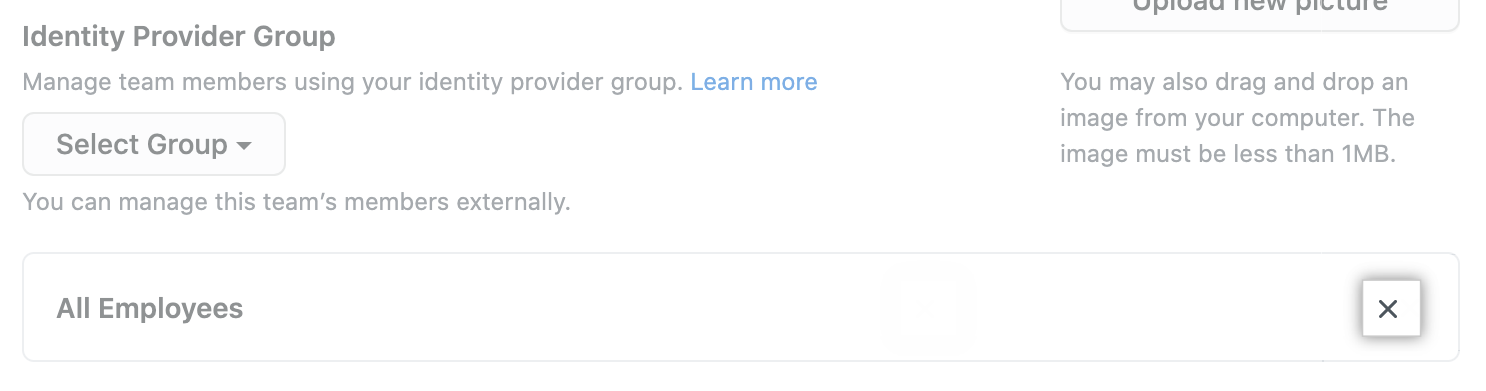
Optionally, under "Identity Provider Group", to the right of the IdP group you want to disconnect, click .
-
To connect an IdP group, under "Identity Provider Group", select the drop-down menu, and click an identity provider group from the list.

-
Click Save changes.


Viewing IdP groups, group membership, and connected teams
Enterprise owners can review a list of IdP groups, each group's memberships, and any teams connected to each group. The IdP groups and memberships listed in this view are based on information sent from the IdP to GitHub via SCIM. You must edit the membership for a group on your IdP.
- In the top-right corner of GitHub, click your profile picture.
- Depending on your environment, click Enterprise, or click Enterprises then click the enterprise you want to view.
- To review a list of IdP groups, in the left sidebar, click Identity provider.
- To see the members and teams connected to an IdP group, click the group's name.
-
- Under Identity provider, click Groups.
- To view the teams connected to the IdP group, click Teams.
If a team cannot sync with the group on your IdP, the team will display an error. For more information, see Troubleshooting team membership with identity provider groups.
Removing members from organizations
The way a member is added to an organization owned by your enterprise determines how they must be removed from an organization.
- If a member was added to an organization manually, you must remove them manually. Unassigning them from the GitHub Enterprise Managed User application on your IdP will suspend the user but not remove them from the organization.
- If a user became an organization member because they were added to IdP groups, remove them from all of the mapped IdP groups associated with the organization.
To discover how a member was added to an organization, you can filter the member list by type. See Viewing people in your enterprise.