1. Understand the effects of removing a member
When you remove members from an organization:
- If you use volume license billing, the paid license count does not automatically downgrade. To pay for fewer licenses after removing users from your organization, follow the steps in Downgrading your account's plan.
- Removed members will lose access to private forks of your organization's private repositories, but they may still have local copies. However, they cannot sync local copies with your organization's repositories. Ultimately, you are responsible for ensuring that people who have lost access to a repository delete any confidential information or intellectual property.
- When private repositories are forked to other organizations, those organizations are able to control access to the fork network. This means users may retain access to the forks even after losing access to the original organization because they will still have explicit access via a fork.
- Removed members will also lose access to private forks of your organization's internal repositories, if the removed member is not a member of any other organization owned by the same enterprise account.
- Any organization invitations sent by a removed member, that have not been accepted, are canceled and will not be accessible.
- If the organization is part of an enterprise on GitHub Enterprise Cloud and the user is still a member of at least one other organization in the enterprise, the user will retain access to repositories with internal visibility in the organization that they are removed from.
- If the organization is part of an enterprise on GitHub Enterprise Cloud and the user is no longer a member of any organizations in it, the user will either become an enterprise unaffiliated member or be removed from the enterprise, depending on your settings. See About user offboarding on GitHub Enterprise Cloud.
- When you remove a user from your organization, their membership data is saved for three months. You can restore their data, or any private forks they owned of your organization's repositories, if you invite the user to rejoin the organization within that time frame. For more information, see Reinstating a former member of your organization.
2. Share best practices
To help the person you're removing from your organization transition and help ensure they delete confidential information or intellectual property, we recommend sharing a checklist of best practices for leaving your organization. For an example, see Prepare for job change.
3. Understand how you manage organization membership (enterprises only)
If the organization is on GitHub Enterprise Cloud, you may manage organization membership from an identity provider.
If you have an enterprise with personal accounts, check if you are using SCIM provisioning in the organization to manage membership. If you are, remove the user from the GitHub application in your IdP and from any IdP groups that are linked to teams with access to the organization. See About SCIM for organizations.
If you use Enterprise Managed Users, check the "member type" of the user to see if their membership is managed manually or by IdP groups. If the user is "Managed by IdP groups", remove the user from any IdP groups that are linked to teams with access to the organization. See Viewing people in your enterprise.
4. Remove the user manually
If the user's organization membership is not managed with by a SCIM integration, you can remove the user from an organization manually.
-
In the upper-right corner of GitHub, click your profile picture, then click Organizations.
-
Click the name of your organization.
-
Under your organization name, click People.

-
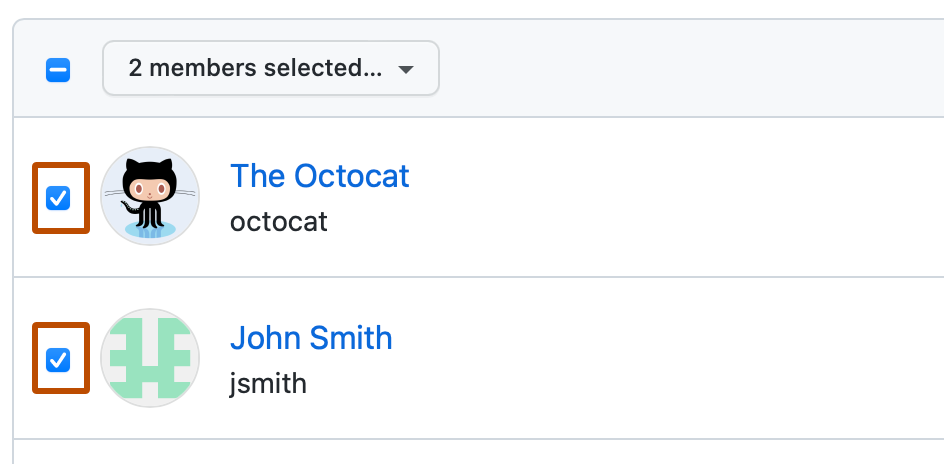
Select the member or members you'd like to remove from the organization.
-
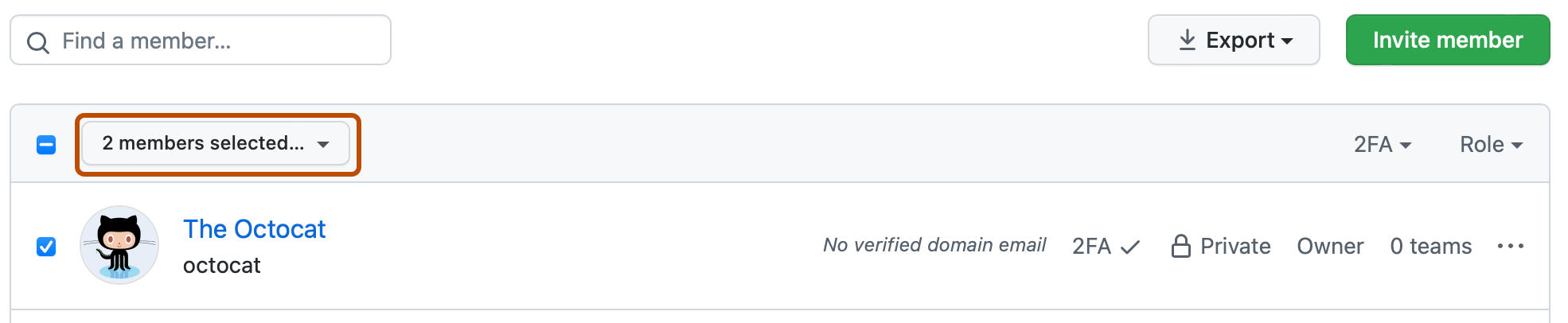
Above the list of members, select the X members selected... dropdown menu, and click Remove from organization.
-
Review the member or members who will be removed from the organization, then click Remove members.


